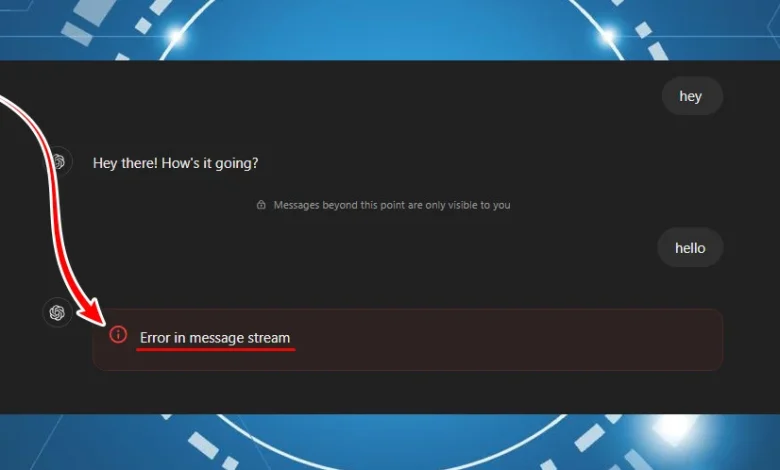
The “Error in message stream“ message appears when you enter a prompt in ChatGPT but the assistant stops mid-response and shows this error instead of completing the reply. This usually happens when the live data stream between your browser/app and OpenAI’s servers is interrupted while the response is being delivered.
Most of the time, this interruption is caused by a server-side timeout, temporary overload, or a connection drop while the model is streaming the reply. However, several browser, network, and software issues on your side can also cut off the response unexpectedly. These include:
- OpenAI server issues (maintenance, outages, degraded performance)
- Slow or unstable internet causing packet loss or connection resets
- Browser cache/cookie conflicts interfering with session data
- VPNs, proxies, or ad-blockers disrupting the WebSocket stream ChatGPT uses
- Strict antivirus/firewall filters that terminate or inspect the connection aggressively
- Very large prompts or responses that push internal processing or streaming limits
The troubleshooting steps below start with the quickest checks. If the error keeps appearing, move on to the deeper fixes.
Troubleshooting Prerequisites
- Regenerate Response / New Chat: A partial or broken stream is often tied to the current conversation. Click Regenerate first. If the error appears again, start a new chat and try the same prompt there.
- Check Server Status: Visit OpenAI’s status page and make sure there is no ongoing outage or degraded performance. If the service is having problems, the issue is on the server side and you’ll need to wait until it stabilizes.
- Switch Browser: A different browser instance helps you quickly rule out profile-specific problems (corrupted cache, cookie mismatch, or conflicting extensions). Test ChatGPT in Edge, Firefox, or Chrome and see if the error only happens in one browser.
- Try a Different Network: If possible, connect through a mobile hotspot or another Wi-Fi network. If ChatGPT works fine there, the problem is likely related to your main router, ISP routing, or local network configuration.
- Remove Attached Images: If the error appears only when you submit a prompt with an image, send the same text without the image. If it works, reattach the image later to confirm whether that upload or file size is triggering the interruption.
1. Use an Incognito or Private Window
Incognito or Private mode runs a clean session with no existing cache and usually with fewer extensions active by default. If ChatGPT works there, the problem is very likely tied to your main profile’s cached data or extensions.
- Open a new Incognito or Private window from your browser’s menu.
- Sign in to your ChatGPT account in that window.
- Submit the same prompt and check whether the response completes without errors.
- If it works fine in private mode, go back to your normal profile and clear cache/cookies or adjust extensions to match the working conditions.
2. Remove Attached Images
- If the error appears only when you submit a prompt with an image, send the same text without the image.
- If it works, reattach the image later to confirm whether that upload or file size is triggering the interruption.
3. Regenerate Response / Start New Chat
- A partial or broken stream is often tied to the current conversation.
- Click Regenerate.
- If the error appears again, start a new chat and try the same prompt there.
4. Check Server Status
- Visit OpenAI’s status page and make sure there is no ongoing outage or degraded performance.
- If the service is having problems, the issue is on the server side and you’ll need to wait until it stabilizes.
5. Switch Browser
- A different browser instance helps you quickly rule out profile-specific problems (corrupted cache, cookie mismatch, or conflicting extensions).
- Test ChatGPT in Edge, Firefox, or Chrome and see if the error only happens in one browser.
6. Disable VPN or Proxy
VPNs and proxies reroute your traffic, which adds extra latency and can cause packet loss, IP throttling, or region-based filters. These issues are common reasons for ChatGPT’s streaming connection to break mid-response.
- Open your VPN or proxy client from the system tray or taskbar.
- Turn the VPN Off or disable the proxy connection.
- Open the VPN settings and choose Exit or Quit so the app closes completely in the background.
- Reload ChatGPT in your browser and try the same prompt again.
7. Shorten Your Prompt or Avoid Oversized Responses
- Split large content into smaller chunks and send them across multiple messages.
- Ask for an outline or summary first, then follow up with detailed questions instead of a single huge request.
- Avoid pasting unnecessarily long logs, raw data dumps, or massive code blocks when a shorter sample would be enough.
8. Turn Off Browser Extensions (Especially Ad-Blockers)
Extensions that block scripts, modify traffic, or filter content (ad-blockers, privacy tools, security extensions) can interfere with the WebSocket connection ChatGPT uses to stream responses.
- Open your browser’s Extensions or Add-ons page.
- Temporarily turn Off ad-blockers, script blockers, privacy extensions, and other network-filtering tools.
- Refresh the ChatGPT page and send the same prompt to see if the response completes.
- If it works, re-enable your extensions one by one to identify which one is interrupting the stream, then either keep it disabled for ChatGPT or add an exception.
9. Clear Browser Cache & Cookies for ChatGPT
Outdated or corrupted cached data can cause broken sessions and interrupted streams. Clearing the cache and cookies for ChatGPT forces a fresh login and resets communication with the server.
- Click the Lock icon next to the website address in your browser’s address bar.
- Select Cookies and site data (or a similar option, depending on your browser).
- Open the Cookies section and remove all entries related to OpenAI or ChatGPT.
- Close and reopen the browser, then log back into ChatGPT and test your prompt again.
10. Try a Different Device or Network
Testing ChatGPT from another device or network helps you quickly isolate whether the problem is specific to your current browser/OS, router, or ISP path.
- Log into ChatGPT on a different PC, laptop, phone, or tablet.
- Connect through a different Wi-Fi network or switch to mobile data where possible.
- Run the same prompt and see if the error appears again.